
This post is intended to be a practical guide for automatically extracting information from Zotero and generating publication records in a Quarto academic website. The workflow is based on the one proposed by Busetto for Hugo Academic. Previously, I adapted this to Blogdown Hugo-Academic and this version is functional for Quarto websites.
Motivation
Academic publications are one of the most important outputs of our work as scientists. As their visibility is key, there are several platforms where we can share them, such as ResearchGate, Google Scholar, etc. However, these platforms are not under our control and they have their own rules and algorithms that might not be the best for us. For instance, they might not allow to share preprints or other types of outputs that are not peer-reviewed papers, which are also important for our work. Moreover, they might not allow to customize the way we present our publications, which is something that we can do in our personal websites.
In this context, having a personal website where we can share our publications in a way that we control is a great option. However, maintaining this website updated with our latest publications can be a hassle, especially if we have many publications and we want to keep it updated with the latest information. This is where the workflow that I propose in this post comes in handy, as it allows to automatically extract information from Zotero and generate publication records in a Quarto academic website. So, you only need to keep your Zotero library updated with your latest publications, and the website will be automatically updated with the information stored in Zotero.
You can have a look at the result of the workflow in action in this quarto website, where I have a section for publications that is automatically updated with the information stored in my Zotero.
The workflow:
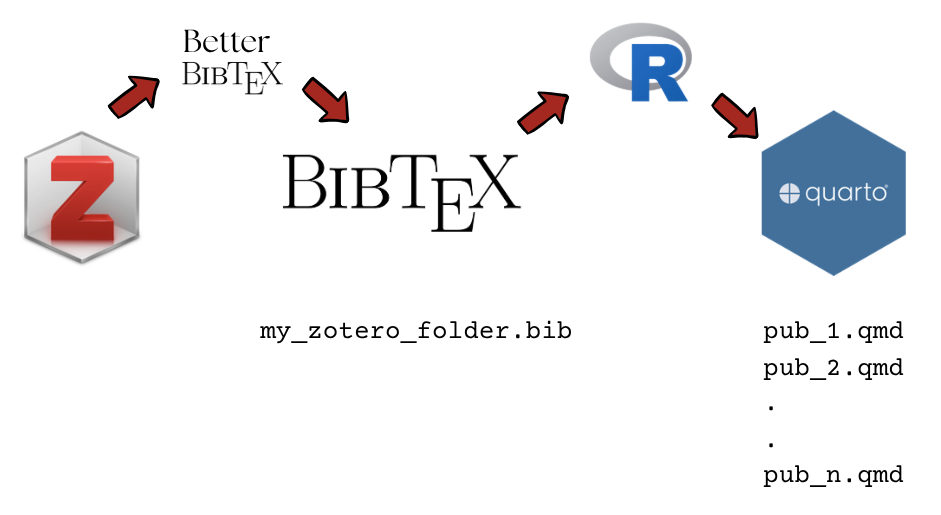
The pieces: 1. A Quarto website where you want to show your publications (and other academic outputs) 2. A Zotero collection/folder where you save your publications (and other academic outputs) 3. A synced bibtex file from Zotero, whih runs autonmatically thorough the add-on BetterBibTex 4. An R script that extracts information from the bibtex file and generates markdown files for each publication in the academic website; let’s call it bibtex2quarto.R
1. Preparing your Quarto Website
This post assumes that you already have a Quarto website, and you want to add a section for publications that is automatically updated with the information stored in Zotero. If you do not have a Quarto website yet, you can follow the instructions in this post to create one from scratch.
Folders & files
In your Quarto website, you can have a section for publications, presentations and thesis, which will be automatically updated with the information stored in Zotero. You need to add a references folder to the project root with the following structure:
└── references
    ├── bibtex2quarto.R
    ├── presentations
    │   ├── index.qmd
    │   ├── posts
    │   └── presentations.bib
    ├── publications
    │   ├── index.qmd
    │   ├── posts
    │   └── publications.bib
    └── thesis
        ├── index.qmd
        ├── posts
        └── thesis.bib
You can download the folder from here: references folder and paste it in the root of your website project. This folder contains all the information and files needed for the workflow, including the R script bibtex2quarto.R and the index.qmd files for each section. You just need to customize the index.qmd files with the title and other information that you want to show in your website.
If you just want to show the publications in your website, you can delete the presentations and thesis folders, and the corresponding lines in the _quarto.yml file (see next step).
2. Zotero collection
Zotero allows to organize your references in folders, which then can be exported independently to other formats. I recommend this folder structure in Zotero:
├── references
│   ├── publications
│   ├── presentations
│   └── thesis
Although this post is focused on publications, the same workflow can be applied to presentations and thesis, as long as you have a folder for each of them in Zotero and you export a synced bibtex file for each of them (details in the next step). In this way, you can have different sections in your website for each type of academic production, and they will be automatically updated with the information stored in Zotero.
3. Export a synced bibtex file from your Zotero folder(s)
Installing and configuring BetterBibTex
Follow the instructions to install the Zotero add-on BetterBibTex. This add-on allows to export a synced bibtex file from your Zotero collection, which is needed for the next step of the workflow.
Once installed, a bit of customization. Go to Edit > Settings > Better Bibtex tab
in Citation key: paste the following in the “Citation key formula” field:
auth.lower+"_"+shorttitle(1).lower+"_"+yearin Export tab
- Bibtex tab uncheck “Export unicode …”, otherwhise there are problems with special characters
- Add URLs to Bibtex export: select in the URL field
in Miscellaneous tab (within Export, not the other one)
- uncheck “Apply case-protection to capitalized words by enclosing them in braces”
Close the settings and we are ready to export the collection.
Exporting the collection
Steps: - right click over your Zotero folder publications - export collection - select format: Better BibTex - IMPORTANT: select “Keep updated”. In this way, references are synced and updated automatically (when Zotero is open). - save it in the references/publications folder, with the name publications.bib – choose “replace”, as in this folder there is already a publications.bib example file.
Any reference that you add afterwards, as well as any modification to any of your record, it will updated with the bibtex file available for your website.
Follow the same steps in case you want to export the presentations and thesis folders, with the corresponding names for the bibtex files: presentations.bib and thesis.bib, which should be saved in their corresponding folders.
The workflow assumes that you have a relatively ordered and completed set of references. The easiest and better way to do it is via the Zotero connector in your browser. Check coherence in authors names, sometimes they appear written differently in different references, which for a bibtex file means two different authors.
So far I have tried this with the following entries: journal, books, chapters and reports, and they are rendered pretty well.
Also: check whether every reference has a bibtex key (!), otherwise the script will not work. You can use the “automatic key” option in BetterBibTex preferences: - go to your collection - select all the references (Ctrl+a) - right button > Better Bibtex > Regenerate Bibtex key
4. Run bibtex2quarto R script
This R script consists of an R function based on the one by Busetto which basically extracts information from each Bibtex record stored in a .bib file and generates a quarto (qmd) file (or “post”) for each record in the folder.
The first part of the script creates the function bibtex2quarto and the second runs the script specifying a) the bib file, and b) the folder where the publication records (as markdown files) are saved.
To run the script from R: - make sure that your woking directory is your website project. - run from the console: source("references/bibtex2quarto.R")
After running the script, the publication folder should have as many markdown files as the number of references in your Zotero synced folder (and in your generated bib file).
About the overwriting option
By default, If you want to make any modification to the generated markdown files, you can do it manually in each file. However, if you run the script again, all the modifications will be lost as the script will overwrite the existing markdown files. To avoid this, you can change the “overwrite” option at the end of the script to false, which will prevent the script from overwriting existing files. In this way, you can make modifications to the markdown files without worrying about losing them when running the script again. However, if you want to keep the workflow as automatic as possible, I recommend to make all the modifications within Zotero and do not touch the markdown files generated by this script. In this way, any modification you make in Zotero will be automatically reflected in the generated markdown files when you run the script, and you will not have to worry about losing any modifications when running the script again.